WordPress Contact Form Not Sending Emails? Here’s How to Fix It
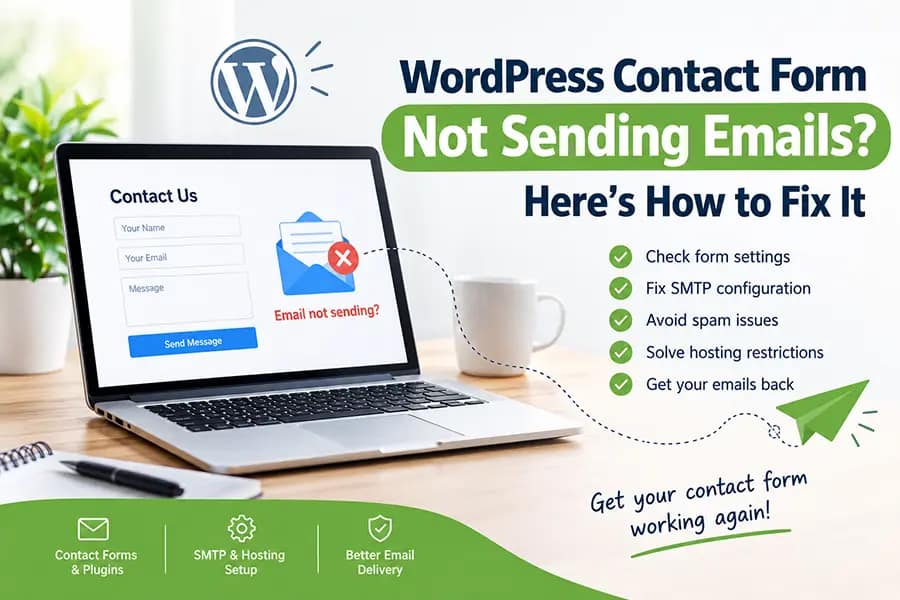
If your WordPress contact form is not sending emails, you may still see a “Message sent successfully” message on the website. This can be confusing because the form appears to work, but the email never reaches your inbox.
The good news is that the problem is often related to email delivery rather than the contact form itself.
In this guide, we’ll check the most common reasons WordPress form emails fail and show you practical steps you can try before contacting a developer.
Why Is My WordPress Contact Form Not Sending Emails?
There are several possible reasons:
- The form recipient email address is incorrect
- The email is going to spam
- WordPress is using unreliable PHP mail
- Your hosting server restricts outgoing emails
- SMTP is not configured
- The form’s “From” address is incorrect
- A security or CAPTCHA plugin is blocking submissions
- Your domain’s email settings are incomplete
- A plugin or theme conflict is causing the problem
- Your email provider is rejecting the message
The first thing to understand is that submitting a form and delivering an email are two different things.
A form can successfully save or process the submission while the email delivery fails.
1. Check the Recipient Email Address
Start with the simplest thing.
Open your contact form settings and check where the email is being sent.
For example, if you use Contact Form 7, go to:
WordPress Dashboard → Contact → Contact Forms → Your Form → Mail
Check the To field.
Make sure the email address is correct.
For example:
To: info@example.comCheck for:
- Spelling mistakes
- Extra spaces
- Wrong domain name
- Old email addresses
- An email address that no longer exists
If you recently changed your business email address, the form may still be sending messages to the old address.
Quick test
Temporarily change the recipient to another email address that you can access.
For example:
To: yourpersonalemail@gmail.comSubmit the form again.
If the message arrives, the form may be working correctly and the original mailbox could be the problem.
2. Check Your Spam or Junk Folder
Before changing anything, check the Spam, Junk, Promotions, or Other folders in your email account.
Sometimes the form email is delivered successfully but your email provider does not place it in the main inbox.
If you find the message in spam, mark it as Not Spam.
Also add your website’s sending address to your contacts.
However, if messages consistently go to spam, you should still investigate the sending configuration instead of simply telling visitors to check their spam folder.
3. Check the “From” Email Address
This is one of the most common problems with WordPress contact forms.
Your form should generally send emails using an address from your own website domain.
For example:
From: website@example.comInstead of:
From: visitor@gmail.comThe visitor’s email should normally be used as the Reply-To address.
For example:
From: website@example.com
Reply-To: [visitor-email]
This setup allows you to click Reply and respond directly to the person who submitted the form, while keeping the actual sender aligned with your domain.
This is especially important when using services such as Gmail, Google Workspace, Microsoft 365, or other email providers.
4. Test Whether WordPress Can Send Any Email
Now we need to determine whether the problem is with your form or with WordPress email delivery.
Install a reputable email testing or SMTP plugin and send a test email from WordPress.
If the test email also doesn’t arrive, the contact form itself may not be the main problem.
The issue could be:
WordPress → Hosting Server → Email Provider
rather than:
Contact Form → WordPress
This simple test can save a lot of time.
5. Use SMTP Instead of Default WordPress Mail
WordPress commonly relies on the server’s PHP mail functionality for outgoing emails.
On some hosting environments, this works without any problems.
On others, messages may be rejected, delayed, marked as spam, or not delivered at all.
Using SMTP gives WordPress a proper authenticated email connection.
Instead of:
Website → PHP Mail → Email Serveryou can use:
Website → SMTP → Email Provider → InboxDepending on your email provider, SMTP can be configured using:
- Your business email account
- Google Workspace
- Microsoft 365
- Your hosting email service
- Another supported SMTP provider
After configuring SMTP, send a test email.
Don’t assume the configuration is correct just because the plugin says it is connected. Always perform an actual test.
6. Make Sure Your Hosting Allows Outgoing Email
Sometimes the problem is at the hosting level.
Some hosting companies restrict PHP mail or outgoing SMTP connections to reduce spam and abuse.
If SMTP isn’t working, contact your hosting provider and ask:
Is outgoing email or SMTP restricted on this hosting account?
You can also ask whether there are any restrictions on ports such as 25, 465, or 587.
If the host blocks the connection, changing the contact form plugin probably won’t solve the problem.
If your website is becoming more dependent on email, reliable hosting and proper server configuration are important. Our Website Maintenance & Support service can also help with ongoing WordPress issues like these.
7. Check Your Domain Email Settings
If you’re using a business email such as:
info@example.comyour domain should have the correct email DNS records.
Important records can include:
- MX
- SPF
- DKIM
- DMARC
These records help email providers verify where your emails come from and whether the message is legitimate.
If you recently:
- Moved your website
- Changed hosting
- Changed email providers
- Changed DNS
- Moved from one business email service to another
then check your DNS configuration carefully.
A website can work perfectly while its email configuration is broken.
8. Check Contact Form 7 Mail Settings
If you’re using Contact Form 7, go to:
Dashboard → Contact → Contact Forms → Mail
Check the following fields:
To
This should be the email address that receives the form.
To: info@example.comFrom
Use an email address from your own domain.
From: Website <wordpress@example.com>Additional Headers
Use Reply-To for the visitor’s email:
Reply-To: [your-email]The exact mail-tag depends on the field name in your form.
For example, if your email field is:
[email* your-email]then:
Reply-To: [your-email]Make sure the field name actually matches your form.
A typo here can cause problems.
9. Check if reCAPTCHA or a Security Plugin Is Blocking the Form
Sometimes the form isn’t actually failing to send an email.
A CAPTCHA, firewall, anti-spam system, or security plugin may be stopping the submission before it reaches the email stage.
This can happen after:
- Changing domains
- Changing API keys
- Updating plugins
- Changing CAPTCHA settings
- Moving the website to another server
- Adding a new security plugin
If you use Contact Form 7 with reCAPTCHA, check whether the CAPTCHA configuration is still valid.
Also look for messages in:
Dashboard → Plugins
or inside your security plugin’s logs.
If legitimate submissions are being blocked, you need to identify which protection layer is causing it rather than simply disabling every security feature.
10. Temporarily Test With Another Form
If you’re still not sure where the problem is, create a simple temporary form.
Keep it basic:
Name
Email
Message
Submit
Don’t add complicated integrations, custom scripts, multiple CAPTCHA systems, or automation.
Test it.
If the simple form works but your original form doesn’t, the problem is probably related to the original form configuration or one of its integrations.
If neither form works, look at WordPress email, SMTP, hosting, and DNS configuration.
11. Clear Your Website Cache
Caching usually doesn’t directly cause email delivery problems, but cached JavaScript or outdated form assets can cause form submissions to behave incorrectly.
If you’ve recently changed your form:
- Save the form again.
- Clear your WordPress cache.
- Clear your caching plugin.
- Clear your CDN cache if you use one.
- Open the website in a private/incognito window.
- Submit the form again.
If you recently changed plugins or website functionality, also check that your WordPress installation is running correctly.
For broader WordPress problems, our WordPress Development service covers custom fixes and troubleshooting.
12. Check Your WordPress Error Logs
If the form appears to work but something is failing behind the scenes, error logs can provide useful information.
Depending on your hosting setup, you may find PHP or WordPress errors in your hosting control panel.
Look for errors that appear at the same time as your form submission.
For example:
SMTP connection failed
Connection timed out
Authentication failed
PHPMailer error
Could not connect to SMTP host
These messages can tell you whether the problem is related to authentication, the server, or the email connection.
If you don’t understand the error, don’t randomly change WordPress files or configuration. Save the exact error message first.
13. Check Whether the Problem Started After a Plugin Update
If your contact form worked yesterday but stopped after a plugin update, a plugin conflict is possible.
Think about what changed immediately before the problem started.
For example:
- Contact Form 7 updated
- SMTP plugin updated
- Security plugin updated
- WordPress updated
- Theme updated
- PHP version changed
- Hosting/server migration completed
If you have a staging website, test the changes there first.
Avoid disabling important security or production plugins randomly on a live business website.
14. Don’t Ignore Website Speed and Hosting
Email delivery is separate from website speed, but your overall WordPress setup still matters.
A poorly configured or overloaded hosting environment can create several unrelated website problems.
If your website is slow, frequently timing out, or using too many server resources, it may be worth reviewing the hosting environment.
You can also see our Website Speed Optimization service if your website has broader performance problems.
For businesses that don’t want to manage hosting, backups, updates, and technical issues themselves, our Managed Hosting & Domains service provides a managed option.
What If the Form Says “Message Sent” but I Receive Nothing?
This is an important distinction.
If your form displays:
Your message has been sent successfully.
it doesn’t necessarily mean the email reached your inbox.
It generally means the form processing completed without detecting an immediate error.
The email can still fail later because of:
WordPress → SMTP/Server → Email Provider → Inbox
That’s why testing the actual email delivery is important.
Quick Checklist
Before contacting a developer, go through this checklist:
✓ Check the recipient email address
✓ Check spam and junk folders
✓ Check the From address
✓ Use Reply-To for the visitor’s email
✓ Test WordPress email separately
✓ Configure SMTP
✓ Check hosting email restrictions
✓ Check SPF, DKIM and DMARC
✓ Check Contact Form 7 settings
✓ Check reCAPTCHA/security plugins
✓ Clear website and CDN cache
✓ Check WordPress/PHP error logs
✓ Test after recent plugin or WordPress updates
Still Not Receiving Contact Form Emails?
If you’ve checked the form settings and SMTP but emails are still not arriving, the problem may require checking the complete WordPress and hosting setup.
Don’t keep changing random settings because you may create another problem while trying to fix the first one.
A proper troubleshooting process should identify where the email stops, whether that’s the form, WordPress, SMTP, hosting server, or the receiving email provider.
If you need help with WordPress troubleshooting, updates, backups, forms, security, and ongoing technical issues, see our Website Maintenance & Support service.
If your website has a more complex form or needs custom functionality, you can also check our WordPress Development service.
Frequently Asked Questions
Why is my WordPress contact form not sending emails?
Common causes include incorrect email settings, unreliable PHP mail, SMTP problems, hosting restrictions, spam filtering, incorrect DNS records, or security plugins blocking submissions.
Does WordPress need SMTP to send contact form emails?
Not always. Some hosting environments can send emails using PHP mail. However, SMTP provides authenticated email delivery and can be more reliable for business websites.
Why does my contact form say sent but I receive no email?
The form submission and email delivery are separate processes. The form can process successfully while the email is rejected, filtered, or lost during delivery.
Should I use my Gmail address in the From field?
It is generally better to use an email address from your website’s domain as the From address and use the visitor’s email as Reply-To.
Why are my WordPress form emails going to spam?
Incorrect sender settings, missing or incorrect SPF/DKIM/DMARC records, server reputation, and email content can all contribute to spam filtering.
Can a WordPress plugin stop contact form emails?
Yes. Security, CAPTCHA, firewall, caching, SMTP, and form-related plugins can sometimes interfere with submissions or email delivery.
Should I disable my security plugin to fix the form?
Not immediately. First check its logs and settings to determine whether it is actually blocking the submission.
What should I do if SMTP also fails?
Check the SMTP username, password, host, port, encryption method, hosting restrictions, and email provider settings. Your hosting provider may also need to confirm that outgoing SMTP connections are allowed.