WordPress Website Not Working After an Update? Here’s What to Check
Did Your WordPress Website Break After an Update?
WordPress updates are important. They can improve security, fix bugs, and maintain compatibility with modern browsers, PHP versions, plugins, and hosting environments.
But sometimes an update doesn’t go as planned.
You update WordPress, a plugin, or your theme—and suddenly something stops working.
Maybe the homepage looks broken. Perhaps your contact form has disappeared, the WordPress dashboard shows an error, or you see a “Critical Error” message instead of your website.
Don’t panic.
An update-related problem doesn’t necessarily mean your website is permanently damaged. In many cases, the problem is caused by a compatibility issue between WordPress, a plugin, a theme, PHP, or another component.
Here’s what you should check when your WordPress website stops working after an update.
1. First, Don’t Keep Updating Everything
If your website has just broken, don’t immediately update every plugin and theme you see.
It can be tempting to click every available update, but this can make troubleshooting much harder.
If the problem started immediately after one particular update, you want to identify what changed.
Make a note of:
- What you updated
- When you updated it
- What stopped working afterward
- Whether the problem affects the entire website or only one page
This information can make troubleshooting much easier.
2. Check Whether the Entire Website Is Broken
First, open your website in a private or incognito browser window.
Check:
- Homepage
- Several internal pages
- Contact page
- Forms
- Navigation
- Images
- Mobile version
Then check your WordPress dashboard.
If the frontend is broken but the dashboard works, the problem may be related to a theme or plugin.
If both the frontend and dashboard are inaccessible, you may need to investigate further.
3. Look for a WordPress Critical Error
One of the more worrying messages a website owner can see is:
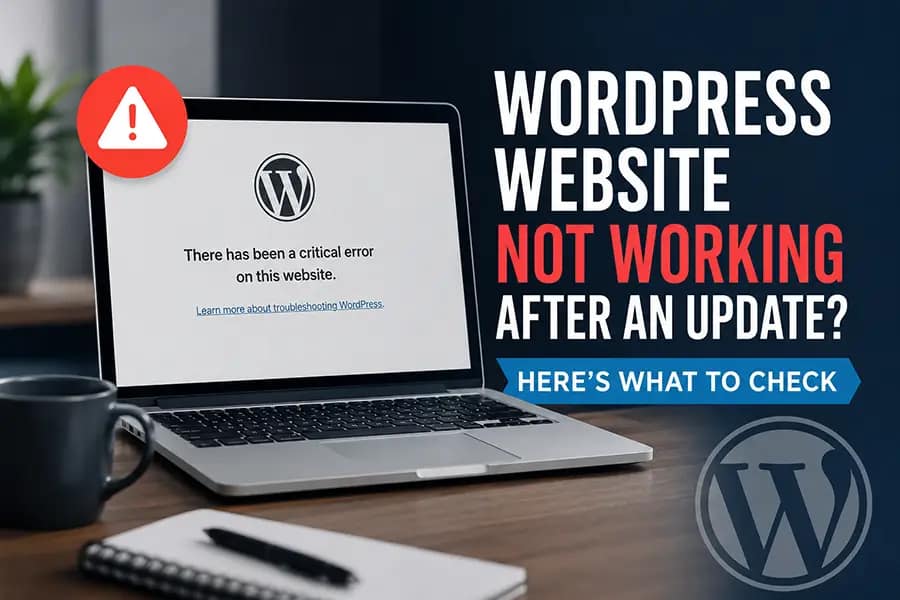
“There has been a critical error on this website.”
This often happens because PHP encountered an error it couldn’t handle.
Possible causes include:
- Plugin incompatibility
- Theme incompatibility
- Outdated PHP code
- Conflicting plugins
- WordPress core changes
- PHP version changes
If the problem appeared immediately after an update, there is a good chance that something that was previously compatible is no longer working correctly.
Don’t start deleting files randomly. Identify the source of the error first.
4. Check the Plugin You Updated
If you updated a plugin immediately before the problem appeared, that plugin should be one of the first things you investigate.
For example, you may notice:
- A page builder stops loading
- A form stops working
- A shortcode disappears
- A specific feature stops responding
- The website displays an error
If you have a recent backup, you may be able to restore the previous version temporarily while the compatibility issue is investigated.
However, don’t leave outdated software running indefinitely without understanding the security implications.
5. Check Your WordPress Theme
Themes can also cause problems after updates.
A theme may rely on:
- Older WordPress functions
- Deprecated PHP functions
- Third-party libraries
- Custom code
- Page builder integrations
If your website suddenly looks completely different after an update, the theme or one of its integrations could be responsible.
This is particularly common with older websites that have accumulated custom modifications over many years.
6. Check Your PHP Version
Your WordPress website doesn’t run on WordPress alone.
It also relies on PHP, which is provided by your hosting server.
If your hosting environment recently changed PHP versions, older themes or plugins may stop working.
For example, code that worked correctly on an older PHP version may produce errors on a newer version.
This doesn’t mean you should automatically switch back to an outdated PHP version.
Older PHP versions can create security and compatibility problems of their own.
Instead, the underlying plugin, theme, or custom code should be updated or fixed where possible.
7. Clear Your Website Cache
Sometimes your website isn’t actually broken.
You may simply be seeing an old cached version.
Depending on your setup, you may have caching at several levels:
- WordPress caching plugin
- Hosting/server cache
- CDN cache
- Browser cache
- Cloudflare cache
After an update, clear the relevant caches and test the website again.
Also test in a private browser window or another device.
If the problem disappears after clearing the cache, you may have found the cause.
8. Check Your Website on Mobile
Don’t assume that a website working on desktop means everything is fine.
Open the website on your phone and check:
- Navigation
- Buttons
- Forms
- Images
- Page layout
- Menus
- Important calls to action
An update may affect only certain scripts or styles, meaning some parts of the website work normally while others don’t.
9. Test Your Contact Form
This is particularly important for business websites.
Your website may look perfect while your enquiry form is silently failing.
Send a test enquiry after major updates.
Check:
- Does the form submit?
- Does the success message appear?
- Does the email arrive?
- Does the email reach spam?
- Does the form store submissions correctly?
A broken contact form can mean lost customers even when the rest of the website appears normal.
10. Check for Plugin Conflicts
Sometimes the problem isn’t the plugin you updated.
An update may introduce a conflict with another plugin already installed on your website.
For example:
Plugin A → updated
↓
Plugin B → older version
↓
Conflict → website feature breaks
This is one reason you shouldn’t assume that updating everything at once is the best approach.
A professional troubleshooting process can isolate plugins and identify which combination is causing the problem.
11. Check Your Browser Console for Errors
If you are comfortable with basic technical troubleshooting, your browser’s developer tools can provide useful information.
In Chrome or Firefox, open Developer Tools and look under the Console tab.
You may see JavaScript errors such as:
- Failed to load resource
- JavaScript errors
- CORS errors
- Undefined functions
- Blocked scripts
These errors don’t always identify the complete problem, but they can provide useful clues.
12. Check Your WordPress Error Logs
If the problem is related to PHP, your server or WordPress error logs may provide more useful information than the visible error message.
Logs can help identify:
- Which plugin generated an error
- Which theme file failed
- PHP compatibility problems
- Database errors
- Memory issues
If you’re not comfortable reading PHP errors, don’t worry. This is exactly the kind of information a WordPress developer can investigate for you.
Why Do WordPress Updates Break Websites?
Updates themselves aren’t necessarily bad.
The problem usually comes from compatibility.
A WordPress website can contain dozens of components working together:
WordPress Core → Theme → Plugins → PHP → Database → Hosting → Custom Code
When one component changes, another component may no longer behave as expected.
This is especially common with older websites that have:
- Outdated plugins
- Abandoned themes
- Custom PHP modifications
- Old page builders
- Nulled plugins or themes
- Poorly maintained code
That’s why simply clicking “Update All” isn’t always the best maintenance strategy for an important business website.
What If Your Website Is Completely Down?
If your website is showing a blank screen, critical error, server error, or another serious problem, don’t start making random changes.
First:
- Check when the problem started.
- Identify what was updated.
- Check whether you have a recent backup.
- Contact your hosting provider if there is a server-level issue.
- Have a WordPress developer investigate the problem if you’re unsure.
A good backup can make recovery considerably easier.
How to Prevent WordPress Update Problems
You can’t guarantee that an update will never cause a problem.
However, you can reduce the risk.
Keep regular backups
Always have a recent backup before making major changes.
Keep WordPress maintained
Don’t allow your website to fall years behind on updates.
Use reputable plugins
Avoid abandoned, poorly maintained, or nulled plugins.
Test important updates
For larger websites, testing updates on a staging website before applying them to production can be extremely useful.
Monitor your website
Don’t assume an update was successful just because WordPress says it completed.
Check your important pages, forms, menus, and other business-critical features.
What If You Can’t Fix It Yourself?
Not every WordPress problem needs a developer.
Simple issues such as clearing cache or checking an obvious plugin update may be easy to resolve.
But if your website is showing a critical error, broken PHP code, plugin conflict, or a problem involving custom development, trying random fixes can create additional problems.
That’s when professional WordPress Maintenance & Support can help.
At Come2theweb, we troubleshoot WordPress websites, fix compatibility issues, resolve bugs, and help businesses keep their websites running reliably.
If an update has caused a deeper problem, we can investigate the cause rather than simply hiding the error.
When Should You Consider Rebuilding the Website?
Sometimes an update problem reveals a much bigger issue.
If your website is built on:
- Very old plugins
- Abandoned themes
- Nulled software
- Outdated PHP code
- Hundreds of unnecessary plugins
- Poorly structured custom code
then repeatedly fixing individual problems may not be the best long-term solution.
In some cases, rebuilding the website with clean, modern WordPress development can be safer and more cost-effective than continually repairing an increasingly fragile installation.
The right decision depends on the condition of the existing website.
Final Thoughts
A WordPress website breaking after an update can be frustrating, but it doesn’t necessarily mean you’ve lost your website.
The first step is to identify what changed.
Check the plugin or theme that was updated, investigate PHP compatibility, clear caching, test your forms, look for plugin conflicts, and review your error logs if necessary.
Most importantly, avoid making multiple random changes at once. A structured troubleshooting process makes it much easier to identify the actual cause.
And if the problem is beyond your technical knowledge, getting professional help early can prevent a small compatibility issue from becoming a much bigger website problem.
Regular WordPress maintenance, reliable backups, and careful updates can go a long way toward keeping your business website stable.